
Best Way To Edit PDFs On Mac Free Tools Apps Online Solutions Reviewed
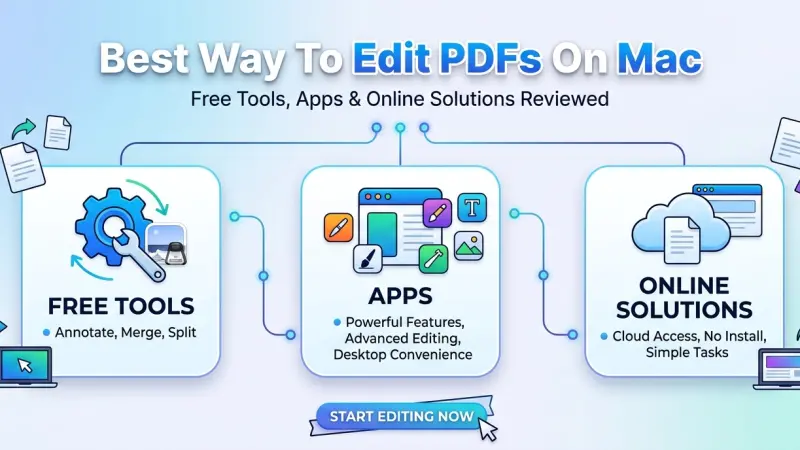
The Portable Document Format is the universal standard for sharing information across different devices and operating systems. This ubiquity creates a significant challenge when you need to modify the content within those files. Mac users frequently encounter frustration when attempting to make simple changes, as the format is inherently designed to prevent alterations in order to preserve formatting. Figuring out the best way to edit PDFs on Mac requires understanding the distinction between basic annotation and deep structural text editing. This comprehensive guide objectively reviews the spectrum of available solutions, ranging from built-in free utilities to premium desktop applications and cloud-based services. By examining the strengths and limitations of each option, you can establish a streamlined, secure workflow tailored to your specific document management needs.

Overview of PDF Editing on Mac
To choose the right software, it is essential to understand the underlying architecture of a PDF and why it resists modification. A common source of user frustration stems from expecting a PDF to behave like a standard word processing document.
The Architecture of a PDF File
When you create a document in a program like Microsoft Word or Apple Pages, the application saves structural data. It remembers that a block of text is a paragraph, allowing the words to flow dynamically when you add or remove content. A PDF fundamentally abandons this structural memory. It functions more like a digital photograph of a printed page. The file records the exact mathematical coordinates of every single letter, image, and line on the page. Because the text is not stored as a flowing, editable block, you cannot simply click in the middle of a sentence and start typing without specialized software that can reverse-engineer those fixed coordinates.
Annotation Versus True Text Editing
Understanding the difference between annotation and true editing is the most critical concept in PDF management. Annotation involves adding new elements over the top of the existing document. This includes drawing shapes, highlighting text, inserting sticky notes, adding text boxes, and applying digital signatures. The original document remains completely untouched beneath these overlays.
True text editing involves altering the actual content baked into the file. This means deleting existing words, rewriting paragraphs, changing the font of the original text, and having the surrounding content automatically reflow to accommodate the changes. Free tools generally excel at annotation. True text editing requires advanced linguistic algorithms found almost exclusively in paid software or specialized online converters.
Benefits of Choosing the Right PDF Solution
Relying on improper methods to modify documents introduces unnecessary risks and inefficiencies. Selecting the appropriate tool for your specific task provides measurable advantages in terms of security, productivity, and document integrity.
Preserving Document Formatting and Integrity
Using makeshift methods, such as taking screenshots or converting files through unvetted web converters, frequently breaks the layout of a document. Fonts substitute incorrectly, margins shift unpredictably, and multi-column layouts collapse into a single, unreadable block of text. Dedicated applications are engineered to recognize and maintain the complex internal coding of the file. They ensure that when you add or remove content, the overall visual layout of the page remains completely intact, exactly as the original author intended.
Enhancing Productivity and Workflow Efficiency
Manually printing a document, filling it out with a pen, scanning it back into your computer, and emailing it is an antiquated workflow that wastes valuable time. Centralizing these tasks within a dedicated application allows you to transition seamlessly from reviewing a document to highlighting errors, adding legal clauses, and applying legally binding digital signatures in a matter of minutes. This consolidation of tasks drastically reduces the administrative friction of daily business operations.
Ensuring Data Security and Privacy
Document management frequently involves highly sensitive information, including financial records, personal identification, and confidential corporate data. Using random, free online editors to process these files introduces severe security vulnerabilities. You are essentially uploading sensitive data to an unknown third-party server. Desktop applications process everything locally on your Mac's hard drive. Premium tools often include additional security features, such as the ability to permanently redact information and apply password protection, ensuring your documents remain compliant with privacy regulations.
Best Way To Edit PDFs On Mac: Free Desktop Tools Reviewed
For the majority of users whose needs are limited to annotation, markup, and basic page management, spending money on software is entirely unnecessary. macOS provides robust, pre-installed utilities that handle these tasks exceptionally well.
Mac Preview: The Native Powerhouse
Preview comes pre-installed on every Mac and is the default viewer for PDFs. While it cannot perform true text editing on existing content, its markup capabilities are surprisingly comprehensive. Clicking the Markup toolbar button reveals a suite of tools for adding text boxes, drawing lines and shapes, and inserting sticky notes.
Preview also features an excellent digital signature utility. You can create a signature by drawing on your Mac's trackpad or by holding a signed piece of paper up to the camera. The software isolates the signature, removes the background, and saves it as a reusable overlay. Furthermore, Preview acts as a basic file manager. You can open the thumbnail sidebar to drag and drop pages, reorder them, delete unwanted sections, or even drag pages from one PDF into another to merge documents seamlessly.
Mac Quick Look: Instant Edits Without Launching Apps
For moments when you need to make a rapid markup without waiting for an application to fully launch, Mac Quick Look is invaluable. By selecting a PDF in Finder and pressing the spacebar, the Quick Look window opens. Clicking the pencil icon in the top right corner instantly transforms this preview window into a basic editor. You can quickly highlight text, add a brief text box, or drop a signature. Clicking "Done" saves the changes immediately. Quick Look is the ultimate tool for quick approvals and rapid-fire annotations on the go.
Top Mac Apps for Advanced Editing Reviewed
When your professional workflow demands true text editing, advanced optical character recognition, or complex form creation, investing in dedicated paid software becomes a necessary operational expense.
These applications contain the algorithms required to manipulate the underlying structure of the file.
PDF Expert: Intuitive Interface and Fluid Performance
PDFExpert, developed by Readdle, is highly regarded for its clean, user-friendly interface that feels entirely native to macOS. It strikes an excellent balance between powerful features and ease of use. While its true text editing capabilities are slightly less fluid than industry-standard options when dealing with heavily formatted, multi-column documents, it excels in day-to-day tasks. The application handles large files with zero lag, offers excellent form-filling capabilities, and provides robust annotation tools. It is an ideal choice for users who want a premium, aesthetically pleasing application primarily for reviewing, annotating, and lightly editing documents.
PDFpenPro: Deep Mac Integration and OCR
Developed specifically for macOS, PDFpenPro offers a deeply integrated experience without the heavy system overhead of larger software suites. It allows for true text editing, meaning you can click on existing text and type over it, with the surrounding content reflowing naturally. PDFpenPro includes high-quality optical character recognition (OCR) for scanned documents, allowing you to convert static images of text into searchable, editable content. The Pro version adds the ability to create interactive PDF forms, add tables of contents, and apply permission settings to restrict editing or copying by other users.
Online Solutions Reviewed
Cloud-based editors provide a distinct alternative to desktop software. They require no installation, consume no local storage space, and are accessible from any device with a web browser.
When to Use Cloud Editors
Online solutions are particularly useful when you are working on a device that is not your primary Mac, or when you need to collaborate on a document in real-time with remote colleagues. They are also highly effective for making quick, one-off edits, such as merging a few files or redacting a small piece of information, when downloading a full desktop application would be disproportionate to the task at hand.
Security and Privacy Considerations
The primary drawback of online editors is data security. When you upload a document to a web-based service, you are temporarily surrendering control of that data. Reputable platforms utilize encryption and explicitly state that files are automatically deleted from their servers after processing. Unvetted platforms may cache, store, or index your data for their own purposes. It is highly advisable to restrict the use of online editors to non-sensitive, generic files. Financial statements, medical records, and confidential legal contracts should always be processed locally on your Mac using desktop applications to ensure absolute privacy.
Step-by-Step Details: Editing a PDF Using Mac Preview
To illustrate the power of free tools, here is a detailed breakdown of how to handle a common administrative task—adding information and signing a document—using only Mac Preview.
Step 1: Opening the Document and Activating the Toolbar
Locate your PDF in Finder and double-click it to open it in Preview. If it opens in another application, right-click the file, select "Open With," and choose Preview. Once the document is open, look at the top right corner of the window, just below the close, minimize, and maximize buttons. Click the icon that looks like a pen tip inside a circle. This reveals the Markup toolbar, which will sit horizontally just above your document.
Step 2: Adding and Formatting New Text
Click the "T" icon in the Markup toolbar. A text box containing the word "Text" will appear in the center of your document. Click inside this box, delete the default word, and type your desired information. To move the box, click and drag it from the edge. To format the text to match the surrounding document, click the "Text Style" button in the toolbar, which usually displays the current font name. A dropdown menu allows you to adjust the font family, font size, text color, and text alignment so your additions blend seamlessly with the original content.
Step 3: Applying a Digital Signature
Click the "Sign" icon in the toolbar, which resembles a scribbled line. If you have created a signature previously, it will appear in the dropdown menu. If not, click "Create Signature." You will be prompted to use your trackpad to draw your signature with your finger, or hold a signed piece of white paper up to your Mac's camera. Once created, click your signature in the dropdown menu. It will appear as a movable, resizable overlay on the document. Drag it to the signature line and use the blue corner handles to adjust the size to fit the allocated space.
Step 4: Saving and Securing the Document
After making your changes, go to File and select Save. This saves the annotations as editable layers, meaning you or someone else could still move them later. If you are sending this document to a third party and want to prevent them from moving or deleting your signature, you should flatten the document. To do this for free, go to File, select Print, click the "PDF" button in the bottom left corner of the print dialogue box, and select "Save as PDF." This process bakes your annotations into the document as static images, securing your changes permanently.
Essential Tips for Flawless PDF Modifications
Mastering the tools is only half the battle. Understanding how to manage files and formatting ensures a professional, frustration-free experience when handling documents on a Mac.
Matching Fonts and Formatting Precisely
When adding new text boxes to a document, many users leave the default font settings, resulting in a professional contract suddenly featuring a mismatched, casual font. Always take a moment to match the font family, size, weight, and color to the surrounding text. If you cannot identify the exact font used in the original PDF, choose a universal, clean sans-serif font like Helvetica or Arial. These fonts are commonly used in business documents and will blend in much better than decorative or informal fonts.
Utilizing Keyboard Shortcuts for Speed
Speed is the primary benefit of using native Mac tools, and keyboard shortcuts amplify this efficiency exponentially. Memorizing a few key commands can drastically reduce your editing time. Pressing Command plus Shift plus H instantly opens the highlight tool without requiring you to move your mouse to the toolbar.
Command plus K opens the signature tool immediately. Learning to use Command plus Z (Undo) and Command plus Shift plus Z (Redo) is crucial when adjusting the precise size and placement of text boxes or shapes.
Flattening Documents Before Distribution
As mentioned in the step-by-step guide, flattening is the process of converting editable annotations into static pixels. Whenever you add signatures, sensitive stamps, or final approval markings to a document, flattening the file before sending it via email prevents the recipient from accidentally or maliciously altering your additions. Developing the habit of flattening finalized documents adds a layer of professional security to your digital communications.
Common Mistakes When Editing PDFs on a Mac
Even with powerful tools at your disposal, falling into common traps can lead to poorly formatted documents, lost data, or security breaches. Recognizing these pitfalls is crucial for maintaining a reliable workflow.
Treating PDFs Like Word Documents
The most frequent mistake users make is expecting a PDF to behave like Microsoft Word. They open a file in a premium editor, click in the middle of a sentence, press backspace, and are frustrated when the text deletes but leaves a massive, gaping hole in the formatting. While paid tools allow you to edit text, the underlying structure is still based on fixed coordinates. You must select the specific text block or use the dedicated text editing tools properly to ensure the text reflows correctly without destroying the layout.
Ignoring OCR for Scanned Documents
A common source of confusion is attempting to highlight or edit text in a PDF, only to find that the cursor simply draws a rectangular selection box instead of highlighting individual letters. This occurs because the PDF is a scanned image containing a photograph of text, not actual digital text characters. No tool, free or paid, can edit an image without first running it through Optical Character Recognition. If you regularly work with scanned documents, ensuring your chosen software has reliable, high-quality OCR capabilities is non-negotiable.
Uploading Sensitive Documents to Unverified Online Converters
Out of a desire to avoid purchasing software, users frequently search for "free online PDF editor" and upload confidential documents to the first result they find. This is a severe security risk. These servers can cache, store, or index your data, potentially leading to data breaches or identity theft. Never upload financial statements, medical records, or confidential business contracts to unvetted web-based converters. Always process sensitive data locally on your Mac.
Failing to Duplicate Original Files
When making complex edits, especially in software that alters the underlying structure of the file, mistakes happen. A formatting error can cascade through a multi-page document, ruining the layout. Always duplicate your original file in Finder before you begin making any modifications. This ensures you always have a pristine, unaltered version to fall back on if your edits do not yield the desired result, saving you from having to request the original document from the sender a second time.
Supporting Local Business Visibility Beyond Core Marketing Efforts
Beyond document management, businesses also rely on consistent digital visibility to build trust and improve discoverability. While core marketing strategies focus on traffic generation, foundational elements like accurate listings and platform consistency contribute to long-term credibility.
Maintaining a presence on platforms such as Local Page UK or using a free company listing platform helps ensure that business information remains accessible and reliable across search environments. These listings act as a supporting visibility layer rather than a primary marketing channel.
Additionally, appearing in a list services uk directory and maintaining profiles on a structured business directory website or business listings site reinforces trust signals. Consistent information across these platforms improves local discovery and strengthens credibility without requiring aggressive promotion.
Determining
Determining the best way to edit PDFs on Mac depends entirely on accurately assessing your specific needs against the capabilities of the available software. For the majority of basic annotation, signing, and page management tasks, the free, built-in power of Mac Preview and Quick Look is remarkably robust and entirely sufficient.
When your professional workflow demands true text manipulation, advanced form creation, or the conversion of scanned images into editable text, transitioning to a dedicated paid solution like PDF Expert or PDFpenPro becomes a necessary investment in productivity. Evaluate your editing requirements realistically, avoid the common security pitfalls associated with online converters, and choose the tool that aligns perfectly with your daily digital demands to create a seamless document management system.
FAQs
1. What is the best free PDF editor for Mac?
Preview is the best built-in option for most users.
2. Can I edit text in a PDF on Mac?
Yes, you can add text using Preview, but full text editing may require advanced tools.
3. Are online PDF editors safe?
They can be safe, but avoid uploading sensitive documents.
4. How do I merge PDFs on Mac?
Use Preview to drag and combine multiple files.
5. Can I convert PDFs to Word on Mac?
Yes, using online tools or third-party apps.
6. What is OCR in PDF editing?
OCR converts scanned images into editable and searchable text.
7. How do I reduce PDF file size?
Use Preview’s export feature to compress files.
8. Can I sign PDFs on Mac?
Yes, Preview includes a built-in signature tool.
9. Do I need paid software for PDF editing?
Not for basic tasks; free tools are often sufficient.
10. Can I edit PDFs offline on Mac?
Yes, using built-in tools like Preview.
11. How do I annotate PDFs on Mac?
Use the markup tools in Preview.
12. Are free PDF editors reliable?
Many are reliable, but features may be limited.
13. Can I edit scanned PDFs?
Yes, but you’ll need OCR functionality.
14. What is the easiest way to edit PDFs?
Using Preview is the simplest method.
15. How do I organize PDF files efficiently?
Use folders and consistent naming conventions.

Disclaimer: The information provided in this article is for general informational and research purposes only. Company details, features, services, and market positions may change over time. Readers are advised to visit official company websites and conduct independent research before making any business decisions or purchasing services.
Most Searchable Keywords

Recent Blogs



Related Listings


Categories
- Accountants (295)
- Advertising Agencies (559)
- Architects (149)
- Automobiles (377)
- Beauty (300)
- Carpenters (146)
- Cleaning Services (386)
- Dentists (189)
- Driving (62)
- Electricians (215)
- Energy (8)
- Event Organiser (685)
- Finance (598)
- Guide (3364)
- Health (2207)
- Information technology (206)
- Legal Services (353)
- Logistics (6)
- Maintenance (65)
- Manufacturing (35)

Sponsored Listings in Locksmith Services


Related Blogs

Where to Find the Best Summer Festivals in Br...
Read this insightful article "Where to Find the Best Summer Festivals in Bristol" to expand your knowledge!

Provisional Driving Licence UK Benefits and L...
Read this insightful article "Provisional Driving Licence UK Benefits and Limits Explained" to expand your knowledge!

Ross on Wye Minibus Hire for Group Travel Mad...
Read this insightful article "Ross on Wye Minibus Hire for Group Travel Made Simple" to expand your knowledge!
Questions & Answers – Find What
You Need, Instantly!
How can I update my business listing?
Is it free to manage my business listing?
How long does it take for my updates to reflect?
Why is it important to keep my listing updated?
