
How to login in Gmail
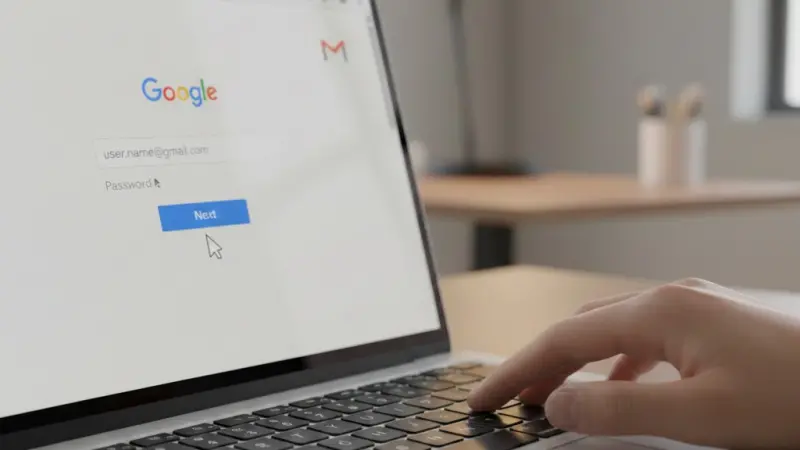
To login to Gmail, navigate to gmail.com in your web browser or open the Gmail app on your smartphone. Enter your registered email address or phone number and select the "Next" button. Provide your secure password and click "Next" again to access your primary inbox. If you have enabled two-step verification, you must also provide the unique code sent to your mobile device or tap the approval prompt on your screen. This straightforward process ensures that your personal correspondence and Google Workspace data remain accessible from any location across the United Kingdom, whether you are using a desktop computer at the office or a mobile device whilst commuting through London.
Accessing your electronic mail should be a seamless experience that integrates perfectly with your daily digital routine. Google has refined the authentication pathway over several years to balance rigorous security standards with user convenience. By following the official sign-in protocols, you ensure that your sensitive information remains protected by industry-leading encryption. Whether you are a casual user checking personal messages or a professional managing business operations, understanding the nuances of the Gmail ecosystem is essential for maintaining a productive online presence in today’s interconnected landscape.
Accessing your inbox via desktop browsers
The most common method for engaging with your correspondence involves using a traditional web browser on a Windows PC or an Apple Mac. To begin, launch your preferred application, such as Google Chrome, Safari, or Microsoft Edge. Type the official URL into the address bar to reach the primary landing page. Once the interface loads, you will be greeted by the familiar sign-in box. Ensure that the connection is secure by looking for the padlock icon in your browser's address bar, which signifies an encrypted session.
Input your full email address, ensuring that no typos are present, as even a single misplaced character will prevent progress. After clicking the primary action button, the system will request your unique password. If you are using a personal computer that is not shared with others, you might consider ticking the box to stay signed in, though this is generally discouraged on public or shared workstations. Once validated, the browser will redirect you to your main dashboard where your latest messages await your attention.
Optimising the browser experience
For those who frequently access their mail throughout the working day, adding a bookmark to your browser’s toolbar can save significant time. You can also utilise the multiple account feature if you need to switch between personal and professional profiles without logging out entirely. This functionality allows you to maintain separate windows for different identities, ensuring that your communications remain organised and distinct. Always ensure your browser is updated to the latest version to maintain compatibility with Google’s evolving security certificates and interface features.
Clearing cache and cookies
If the login screen fails to load or appears distorted, it is often helpful to clear your browser's temporary data. This action removes outdated scripts that might be conflicting with the current version of the mail service, effectively resetting the interface for a fresh, error-free session in your chosen browser.
Navigating the mobile application interface
In our increasingly mobile-centric society, many residents across the UK prefer to manage their digital lives via handheld devices. The dedicated application, available on both the iOS App Store and the Google Play Store, offers a more integrated experience than a mobile browser. After downloading the software, tap the icon to initiate the setup. If you already have a Google profile linked to your smartphone for other services, the app may automatically suggest those credentials to streamline your entry into the inbox.
Adding a new account involves tapping your profile picture and selecting the option to add another identity. You will follow a similar verification path as the desktop version, including the input of your credentials and any necessary multi-factor authentication steps. The app is specifically designed to provide push notifications, allowing you to stay informed about urgent enquiries in real-time. This level of connectivity is particularly beneficial for those managing busy schedules or waiting for important updates regarding travel, banking, or employment within the United Kingdom.
Managing notifications on the move
Once you have successfully entered the app, it is wise to visit the settings menu to customise how you receive alerts. You can choose to be notified for all incoming mail or only those marked as high priority. This prevents your device from buzzing incessantly throughout the day while ensuring you never miss a critical message from a solicitor, a healthcare provider, or a family member. Fine-tuning these settings helps maintain a healthy work-life balance while staying connected.
Syncing data across devices
The beauty of the mobile ecosystem lies in its ability to synchronise your actions instantaneously. When you read or delete a message on your phone, the change is reflected on your tablet and desktop. This seamless data transition ensures a consistent state across all your hardware, regardless of where you are.
Essential security measures for British users
Protecting your digital identity is paramount, especially as cyber threats become more sophisticated. Google provides a suite of tools designed to shield your account from unauthorised access. The cornerstone of this protection is the security check-up, which provides a comprehensive overview of your current settings. It is highly recommended to perform this review at least once a quarter to ensure that your recovery information, such as your secondary email and mobile number, is still accurate and functional.
Another vital component is the monitoring of active sessions. Within your account settings, you can view a list of every device currently signed into your profile, along with its geographic location. If you notice a login from a city you haven't visited or a device you don't own, you can instantly revoke its access.
For UK users, this provides peace of mind that their personal data isn't being accessed from overseas locations without their explicit permission or knowledge during their daily digital activities.
The importance of robust passwords
Creating a complex password is your first line of defence against intruders. Avoid using easily guessable information like your street name, your pet's name, or your favourite football team. Instead, opt for a combination of uppercase letters, numbers, and special symbols. Using a reputable password manager can help you generate and store these complex strings securely, so you don't have to worry about forgetting the credentials for your primary communication hub.
Utilising physical security keys
For individuals requiring the highest level of protection, such as those in sensitive professions, physical security keys are an excellent investment. These small USB or NFC devices provide a hardware-based layer of authentication that is virtually impossible for remote hackers to bypass, adding an extra physical barrier to your digital vault.
Implementing two step verification protocols
Two-step verification, often referred to as multi-factor authentication, is the most effective way to prevent account takeovers. By requiring a second form of identification beyond just your password, you create a dual-layered shield. This second step usually involves a code sent via text message, a phone call, or a prompt delivered through the Google app on your smartphone. Even if a malicious actor manages to obtain your password, they will be unable to access your inbox without this secondary physical confirmation.
Setting up this feature is a straightforward process within your security settings. You can choose from various methods, including backup codes that you can print out and keep in a safe place. These codes are invaluable if you lose your phone or find yourself in an area with poor mobile reception. In the UK, where mobile signal can vary in rural locations, having these physical backups ensures that you are never locked out of your vital communications when you need them most.
Choosing the right verification method
While text message codes are convenient, using an authenticator app or Google prompts is generally considered more secure. These methods are not susceptible to SIM-swapping attacks, which have occasionally targeted mobile users. By selecting the prompt-based system, you simply tap "Yes" on your phone screen to verify your identity, making the login process both highly secure and incredibly fast for your everyday use.
Trusting your personal devices
To avoid entering a code every single time you sign in, you can mark your personal computer or laptop as a trusted device. This means the system will only ask for a second factor if it detects a login attempt from an unrecognised source or if you haven't accessed the account for an extended period, balancing security with daily convenience.
Common mistakes to avoid during sign in
One of the most frequent errors users make is attempting to log in while connected to a public Wi-Fi network without a virtual private network. Open networks in coffee shops or train stations can be intercepted by third parties looking to harvest credentials. Always wait until you are on a trusted home or office network, or use your mobile data, to access sensitive accounts. This simple precaution can save you from the significant headache of a compromised digital identity and subsequent data loss.
Another common pitfall is ignoring the security alerts that Google sends to your recovery address. If you receive an email stating that a new device has signed in, do not dismiss it unless you are certain it was your own action. Promptly responding to these alerts can stop a breach in its tracks. Additionally, many users fail to update their recovery information, meaning that if they lose their password, they have no way to prove their identity, leading to permanent account loss and the frustration of starting a digital profile from scratch.
Risks of using shared workstations
When using a computer at a library or a shared office space, it is vital to use the "Incognito" or "Private" mode of the browser. This ensures that your history, cookies, and login details are not stored on the machine after you close the window. Forgetting to sign out or allowing the browser to save your password on a public device is a major security risk that should be avoided at all costs.
Falling for phishing attempts
Always verify the URL before entering your details. Phishing websites are designed to look identical to the real login page but are hosted on different domains. If the web address looks suspicious or contains unusual characters, close the tab immediately. Remember, Google will never ask for your password via an unsolicited email or a direct message.
Troubleshooting forgotten credentials and lockouts
If you find yourself unable to remember your password, do not panic. The account recovery tool is designed to help you regain access through a series of verification questions. Start by clicking the "Forgot password?" link on the login screen.
The system will likely ask for the last password you remember using or send a verification code to your registered recovery mobile number or secondary email address. It is crucial to have these recovery options set up in advance to ensure a smooth transition back into your account.
In some cases, you may be asked to provide the date you created your account or answer specific security questions. If you are unable to provide this information, the process becomes significantly more difficult. Google’s automated system prioritises security, which can sometimes result in legitimate users being locked out if they cannot prove ownership. This highlights the absolute necessity of keeping your recovery data current and accessible, as it serves as your ultimate safety net in the event of a forgotten credential or a technical glitch.
Dealing with account suspension
Occasionally, an account may be disabled due to a perceived violation of terms of service or suspicious activity. If this happens, you will see an explanation when you attempt to log in. You can usually appeal this decision by following the on-screen instructions. Providing clear information and proving your identity will help the support team review your case and potentially restore your access to your emails and associated documents.
Handling browser compatibility issues
If the login button seems unresponsive, try disabling your browser extensions, particularly ad-blockers or script-protectors. These can sometimes interfere with the JavaScript required for the authentication process. Switching to a different browser or using a private window can also help determine if the issue is related to your specific software configuration or a broader service outage.
The future of authentication without passwords
The digital landscape is moving toward a future where traditional passwords may become obsolete. Google is at the forefront of the "Passkeys" movement, which uses your device’s local authentication—such as fingerprint scanning, facial recognition, or a screen lock PIN—to sign you into your accounts. This method is not only more convenient, as there is no string of characters to remember, but it is also significantly more secure against phishing and data breaches, as the private key never leaves your physical device.
For UK users, this transition represents a significant step forward in ease of use. Imagine being able to access your inbox with a simple touch of your finger on your smartphone or a glance at your laptop’s camera. As more services adopt this standard, the reliance on complex passwords will diminish, reducing the risk of account takeovers and the frustration of forgotten credentials. Embracing these new technologies as they become available will ensure that your digital life remains both accessible and fortified against the evolving tactics of cybercriminals in the years to come.
Adopting biometric identification
Biometric data is stored securely on your hardware and is never shared with Google’s servers. This privacy-first approach ensures that your sensitive biological information remains under your control while providing a highly personalised and rapid way to verify your identity. As more devices include high-quality sensors, this will likely become the standard way to interact with all digital services in the British market.
The role of artificial intelligence
Artificial intelligence is also playing a role in behind-the-scenes security. Google uses machine learning to identify unusual login patterns that might indicate a hacking attempt. By analysing thousands of signals, the system can challenge suspicious attempts while providing a frictionless experience for legitimate users, effectively acting as an invisible guardian for your personal communications.
Step by step guide to a successful login
To ensure a smooth entry into your inbox, follow these precise steps. First, ensure your internet connection is stable and secure. Open your browser and navigate to the official portal. Enter your identifier, which is usually your email ending in @gmail.com, and press the button to proceed.
Carefully type your password, paying close attention to capitalisation and special characters, as these are case-sensitive. If you have any doubt about what you are typing, use the eye icon to briefly reveal the characters and confirm their accuracy before clicking the final confirmation.
If a secondary verification screen appears, check your mobile device for a notification or a text message containing a six-digit code. Enter this code into the box provided on your computer screen. Once validated, your browser will load your inbox, typically starting with the "Primary" tab. From here, you can read new messages, compose replies, or organise your folders. Always remember to sign out if you are on a device that is not your own, and periodically check your security settings to ensure everything is functioning as intended for your peace of mind.
Verifying the URL authenticity
Before typing any information, always glance at the address bar. It should begin with "https://" and the domain should clearly be google.com or gmail.com. This quick check is the most effective way to avoid spoofed websites that exist solely to steal your credentials. Developing this habit is a hallmark of a savvy digital citizen who takes their online safety seriously in an age of frequent cyber scams.
Using the account switcher
If you manage multiple accounts, the account switcher in the top right corner is your best friend. Instead of logging out and back in, you can simply click your profile picture and select the other account you wish to view. This allows you to monitor different inboxes simultaneously, making it much easier to stay on top of various projects and personal commitments throughout your day.
FAQ
Why can I not access my account even with the correct password?
This issue often arises due to browser cache conflicts or security flags triggered by an unusual location. If you are certain your password is correct, try clearing your browser cookies or using a private browsing window. Additionally, check if you have two-step verification enabled, as you may need to provide a code from your mobile device to complete the sign-in process for your security.
What should I do if I suspect my Gmail has been hacked?
Immediately navigate to the Google Account Recovery page and change your password to something unique and complex. Once you have regained control, review your security settings to see if any unauthorised recovery emails or phone numbers were added. Revoke access for any unrecognised devices in your account settings and enable two-step verification to prevent the intruder from regaining entry to your personal information.
How do I find my email address if I have forgotten it?
You can use the "Find my account" feature on the login page. You will need to provide the recovery phone number or the secondary email address associated with the account, along with the full name used during registration. Google will then send a verification code to that recovery method and provide a list of matching usernames, allowing you to identify the correct address and proceed with the login.
Is it safe to stay signed in on my personal laptop?
Staying signed in on a private, password-protected device is generally safe and offers significant convenience. However, you should never do this on a shared or public computer. If you choose to stay signed in, ensure your laptop itself has a strong login password or biometric lock to prevent anyone with physical access to the machine from opening your browser and viewing your private emails and personal data.
How can I login if I lost my phone for two-step verification?
If you lose your primary verification device, you can use the backup codes that were generated when you first set up the feature. If you do not have these codes, you will need to go through the account recovery process. This may involve verifying your identity via a recovery email or answering security questions. This underscores why it is vital to keep your backup methods updated and stored safely.
Disclaimer: The information provided in this article is for general informational and research purposes only. Company details, features, services, and market positions may change over time. Readers are advised to visit official company websites and conduct independent research before making any business decisions or purchasing services.
Most Searchable Keywords
Recent Blogs


Related Listings

Categories
- Accountants (295)
- Advertising Agencies (559)
- Architects (149)
- Automobiles (377)
- Beauty (300)
- Carpenters (146)
- Cleaning Services (387)
- Dentists (189)
- Driving (62)
- Electricians (215)
- Energy (8)
- Event Organiser (686)
- Finance (602)
- Guide (3372)
- Health (2207)
- Information technology (206)
- Legal Services (353)
- Logistics (6)
- Maintenance (65)
- Manufacturing (35)
Sponsored Listings in Travel Agencies


Related Blogs

How Much Do UK Actors Really Earn Full Indust...
Read this insightful article "How Much Do UK Actors Really Earn Full Industry Breakdown" to expand your knowledge!

Blue Light Card UK 2026 Check Eligibility and...
Read this insightful article "Blue Light Card UK 2026 Check Eligibility and Claim" to expand your knowledge!

BBC Radio 1 DJs Net Worth Ranking Revealed
Read this insightful article "BBC Radio 1 DJs Net Worth Ranking Revealed" to expand your knowledge!
Questions & Answers – Find What
You Need, Instantly!
How can I update my business listing?
Is it free to manage my business listing?
How long does it take for my updates to reflect?
Why is it important to keep my listing updated?
